Passport Photo Size Guide (Complete FAQ)
Getting your passport photo size right is crucial for passport applications, visas, and official ID documents. Incorrect dimensions or face alignment can lead to rejection, delays, or resubmission. This Passport Photo Size Guide answers the most common questions and helps you prepare a perfect photo using online tools.

A php Developer
What Is the Standard Passport Photo Size?
The most widely accepted passport photo size across many countries is:
-
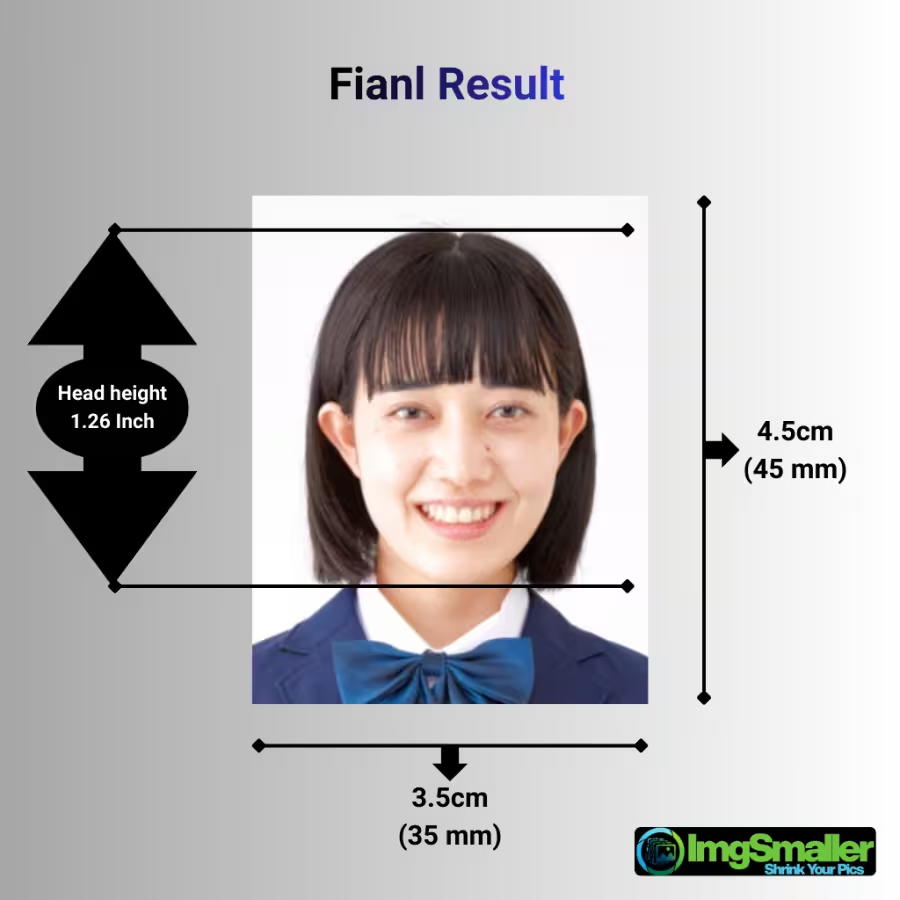
Width: 3.5 cm
-
Height: 4.5 cm
-
Equivalent in mm: 35 × 45 mm
This size is commonly required for passports, visas, Aadhaar-related forms, PAN applications, and other government IDs.
Why Is the 3.5×4.5 cm Photo Size Important?
Government and embassy systems automatically verify photo dimensions. Even a small deviation can cause rejection. The 3.5×4.5 cm size ensures:
-
Proper face visibility
-
Correct head positioning
-
Compliance with international passport standards
-
Faster application approval
How Do I Resize a Passport Photo to 3.5×4.5 cm?
You can resize your photo accurately without Photoshop or paid software by using an online passport photo resizer.
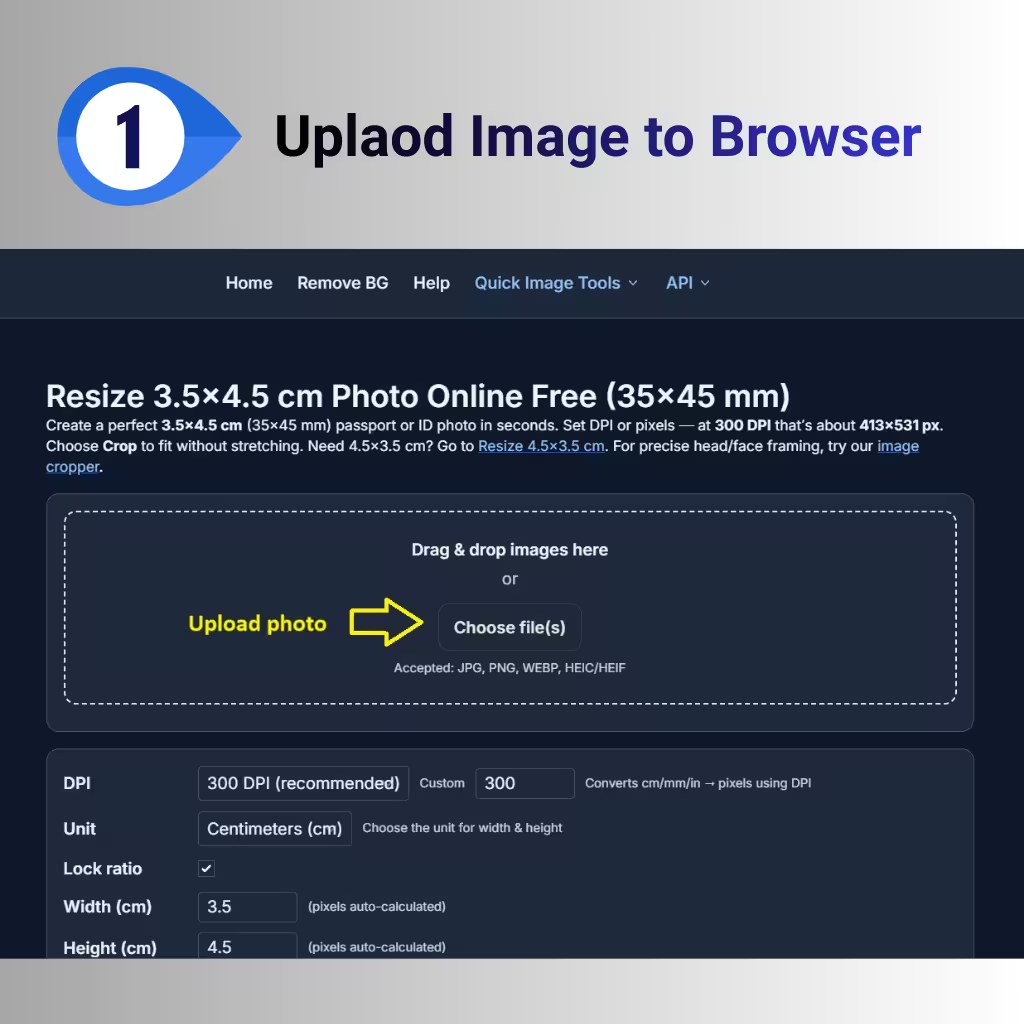
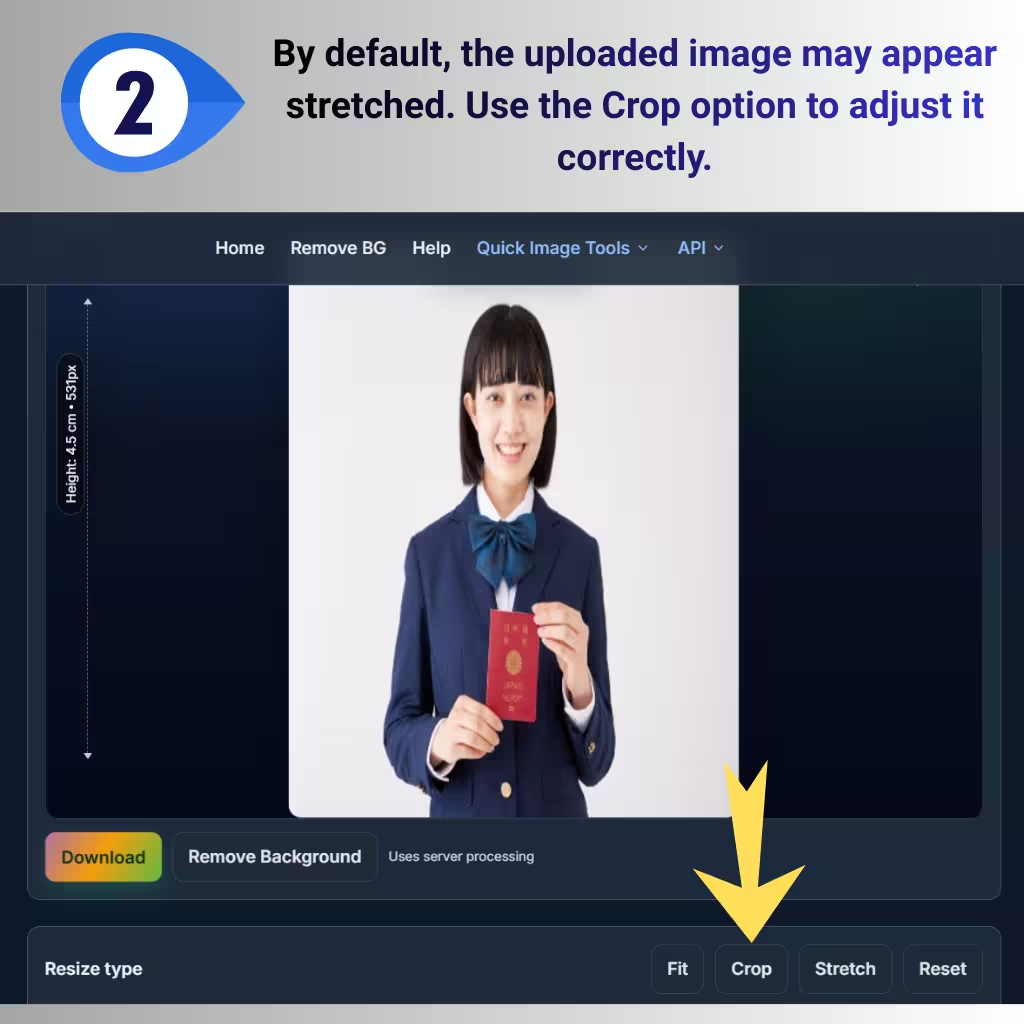
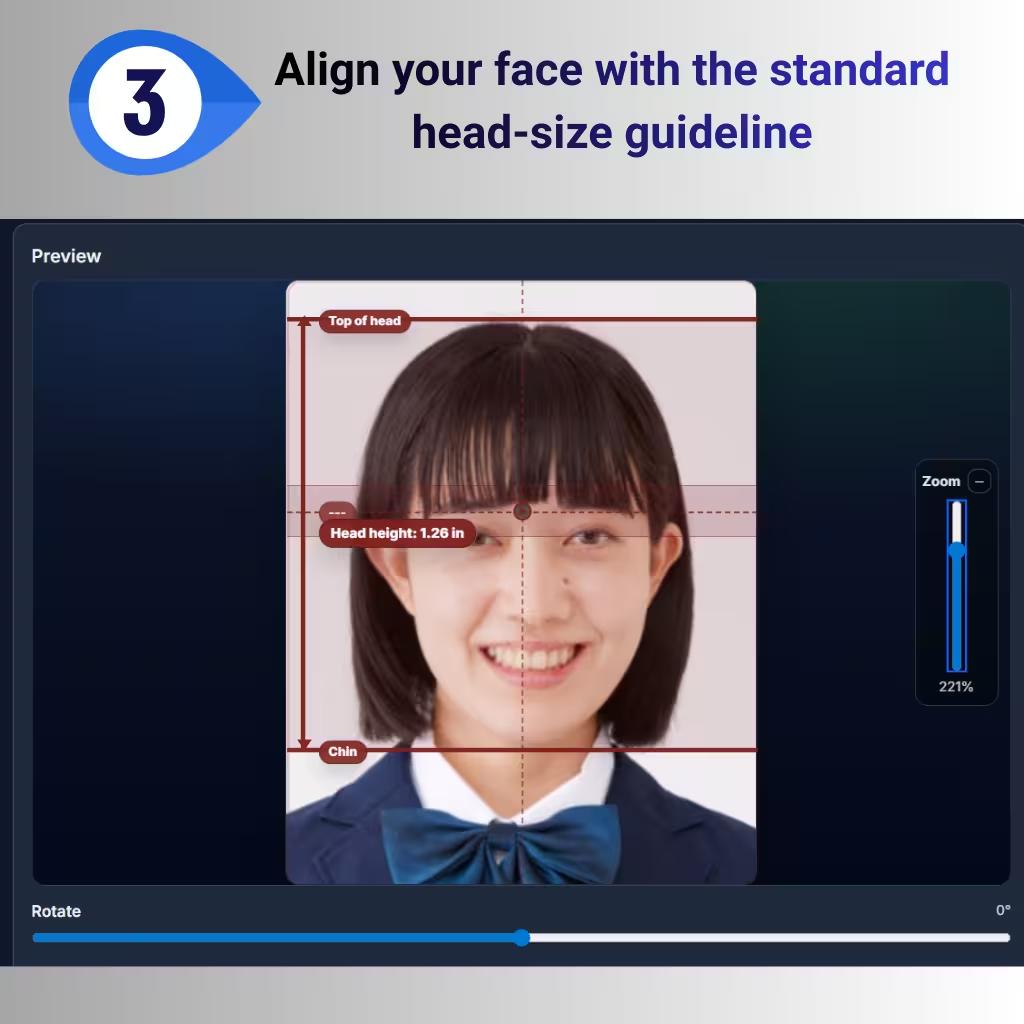
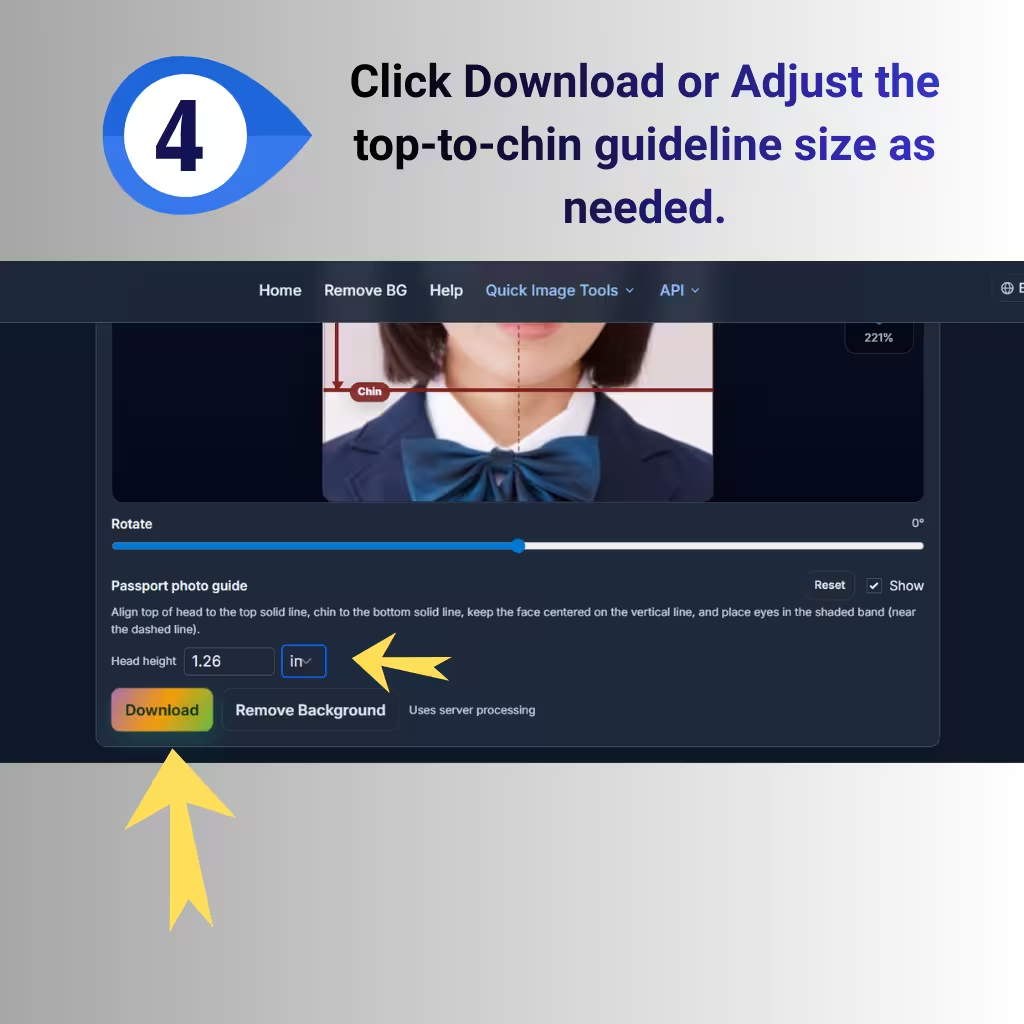
➡ Use this free online tool to resize images to 3.5×4.5 cm:
https://imgsmaller.com/resize-image-to-3.5x4.5cm
This tool allows you to:
-
Set exact width and height in cm
-
Adjust face position inside the frame
-
Maintain photo quality
-
Download instantly without watermark
Can I Resize a Passport Photo on Mobile?
Yes. You can resize passport photos directly from your mobile phone. The tool works on:
-
Android phones
-
iPhones
-
Tablets
-
Desktop and laptop browsers
No app installation is required.
What Should Be the Face Size in a 3.5×4.5 cm Photo?
In most cases:
-
The face height should cover 70–80% of the photo
-
The head must be centered
-
Eyes should be horizontally aligned
-
Chin and head top must be clearly visible
The resizing tool allows you to adjust head-to-chin size to match official standards.
Does Background Color Matter?
Yes. Most passport authorities require:
-
Plain white or off-white background
-
No shadows
-
No patterns or objects
If your background is not correct, resize and crop the image first, then adjust lighting before uploading.
Can I Resize a Passport Photo Without Losing Quality?
Yes. Quality loss usually happens when images are stretched incorrectly. A proper passport photo resizer:
-
Preserves original resolution
-
Uses smart scaling
-
Avoids pixel distortion
Always preview the image before downloading.
Is This Tool Free to Use?
Yes. The passport photo resize tool is:
-
100% free
-
No signup required
-
No watermark
-
No image stored on servers
Your photo remains private.
Common Mistakes to Avoid
-
Uploading selfies with tilted heads
-
Incorrect aspect ratio
-
Face too small or too large
-
Shadows on face or background
-
Cropping ears or chin
Using a dedicated passport photo resizing tool helps avoid these issues.
Which Applications Require 3.5×4.5 cm Photos?
This size is commonly used for:
-
Passport applications
-
Visa forms
-
Government job forms
-
University admissions
-
ID verification documents
Always double-check specific country guidelines.
Is My Photo Uploaded to the Server?
ImgSmaller follows a privacy-first processing model, and how your image is handled depends on the feature you use.
Zero-Upload Processing (Default)
For standard actions such as:
-
Resizing to 3.5×4.5 cm
-
Cropping
-
Adjusting dimensions
-
Face positioning
👉 All processing happens directly inside your browser.
Your image is never uploaded to any server.
This zero-upload mode ensures:
-
Maximum privacy
-
Faster processing
-
No data storage
-
No tracking of personal photos
When Is Image Upload Required?
The only case where an image needs to be sent to the server is:
Background Removal Feature
Background removal requires AI-based processing that cannot run fully inside the browser.
In this case:
-
The image is temporarily uploaded to the server
-
Used only for background removal processing
-
Never shared with third parties
How Long Are Uploaded Images Stored?
For background removal only:
-
Images are automatically deleted after 30 minutes
-
A secure cron job runs every 30 minutes to remove all processed images
-
No manual access or reuse of images
This ensures:
-
Short-lived storage
-
Compliance with privacy best practices
-
No long-term image retention
Privacy Summary (Quick Overview)
-
✅ Zero-upload for resizing & cropping
-
✅ Server upload only for background removal
-
✅ Automatic deletion after 30 minutes
-
✅ No account or login required
-
✅ No watermark or hidden tracking
Final Tip: Always Use a Dedicated Passport Photo Tool
General image editors are not designed for passport standards. For best results, use a tool built specifically for passport photo resizing.
➡ Resize your image to exact 3.5×4.5 cm here:
https://imgsmaller.com/resize-image-to-3.5x4.5cm
Ce que disent les utilisateurs
ImgSmaller is a simple and useful image compression tool with good quality results and an easy interface. It works well for quick optimizations, though I’d love to see more advanced features and format options in future updates.
ImgSmaller makes image compression fast, simple, and perfect for improving website speed without sacrificing quality.
ImgSmaller is an excellent image compression tool that helps reduce image size without losing quality. It’s fast, easy to use, and perfect for optimizing JPG, PNG, and WebP images for better website speed and SEO performance. The clean interface and privacy-focused zero-upload feature make it a reliable choice for developers, bloggers, and designers.
It's is so useful, thank you so much❤😊 U can provide the facility of converting compressed image results into pdf format, that will be so helpful. chatgpt told me about this website
Support ImgSmaller
Found it useful? Add a link to help others discover privacy‑friendly image compression.